
Teams
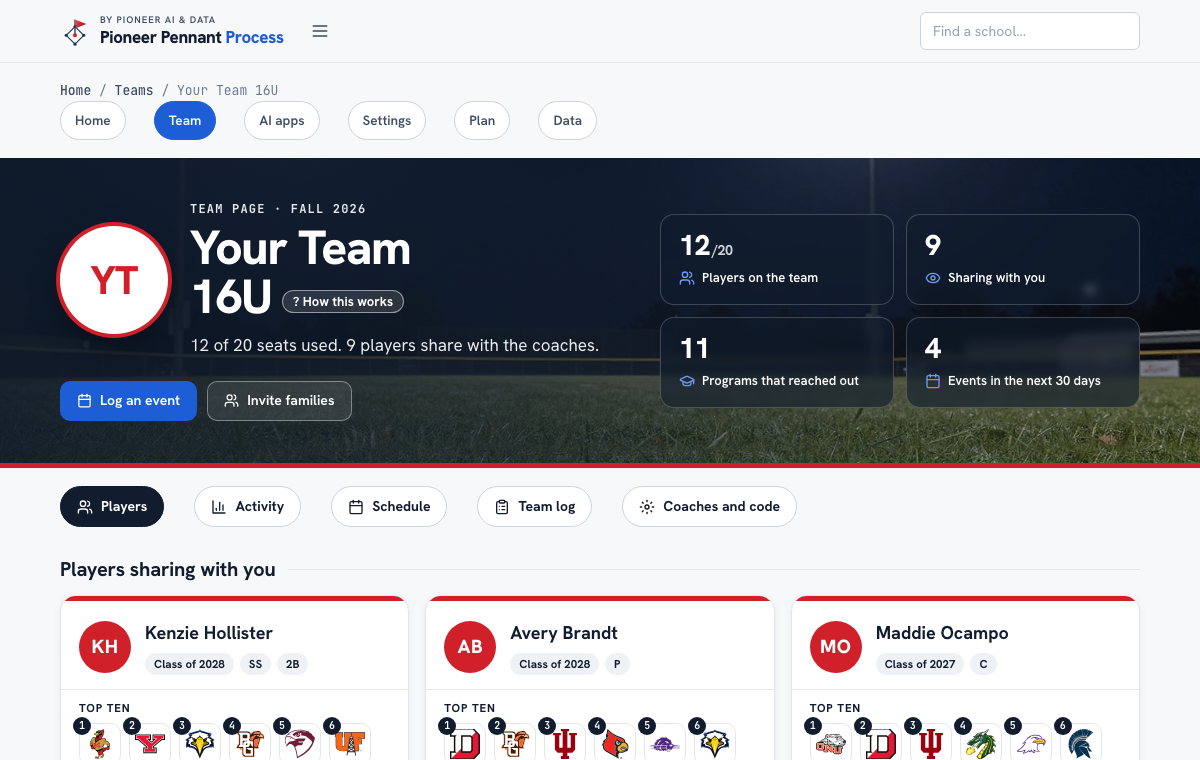
Your team page, for coaches
For a team's coaches: who is on the team, what they are doing, and where they are headed, from the families who share.
Steps
- Start the team from Pricing or your Team tab: name it, pay $197 a year by card, and you own it. Your first week stays on the Players tab as a checklist until it is done: send families the message, put in the season's schedule, and log the colleges after your first tournament. The owner adds up to two more coaches by email from Coaches and code; a coach with no login sets a password with Forgot your password? on the login page. Billing (the card, invoices, cancel) is on the same tab.
- Send families the link, read them the code, or show the QR code at practice, all on Coaches and code, with a message for the parents' group chat ready to copy. A seat is an athlete; a parent's login uses none. The same tab sets the team's look: upload your logo, pick a team color or type your own (your flyers' main color and the dark background under them), and a cover photo.
- Players shows the roster and a card for each player who shares: her Top Ten, what is next, and the latest in her log. Activity lists every shared log entry; filter it by school (who has contacted or heard from it), by what happened, by player, and by dates.
- Schedule: add the season's tournaments once, with the city, the fields, and the address. Every player on the team gets those dates on her own schedule and profile sheet, and her family can mark one Not going. Each event's page takes its games and draws that tournament's flyer; the Schedule tab draws the season flyer (what is still ahead, or the whole season with Include dates already played) with each tournament's logo upload under it. Fill in the flyer details there (the follow link makes the QR code), then download a flyer for Instagram, Facebook, or X.
- Team log: an event moves here once it starts. After a showcase, add the colleges that came to watch. You get the Thank You College Coaches picture to download, with your logo and colors, and a thank-you draft to each program to send from your own email (Open in Gmail, or Open in my email app): to the coach who came when you note them, or to the head coach with the staff copied. Every player on the team gets those colleges on her own list of who to email for 60 days, her own schools first, and Who has written on the event's page shows which players who share have emailed which colleges since, and how many each has not, fewest written first. Process covers NCAA programs for now; an NAIA or junior college program that came is named back to you and left off until those schools are added.
- Remove takes a player off the team. Only the link goes; her account stays hers, and the code will not put her back until a coach presses Let back on. Make a new code if the old one got around.
- Connect Claude, ChatGPT, or Gemini from AI apps in your account to work the team log by talking: log a showcase and the colleges that came, note which coach came, log a call, or get a thank-you draft. The AI app reads the team's own log only, never a player.
What good looks like
Before a showcase, the recruiting coordinator filters Activity to the schools that will be there, sees which players have already emailed each one, and reminds the rest.
Mistakes we see
- Expecting to edit a profile or log for a player. Coaches see; each girl does her own tracking on her own account.
- Asking an AI app about a player. It reads the team log only; what families share stays on the team page.
- Reading an empty card as no activity. A player who has not turned sharing on shows as a name only, and under 18 only a parent's login can turn it on: ask a parent to sign in with their own login and turn it on from the Team tab.
- Posting the join link in public. Anyone with it can take a seat; keep it to your families.
Related
Join your team The recruiting log
Still stuck? Support reaches a person, and every guide lives at Help.